
Go to Settings >> Configuration from the navigation bar and click CNDP.
Click Global Date Configuration and select a Global Date Format from drop-down.
Click Save.
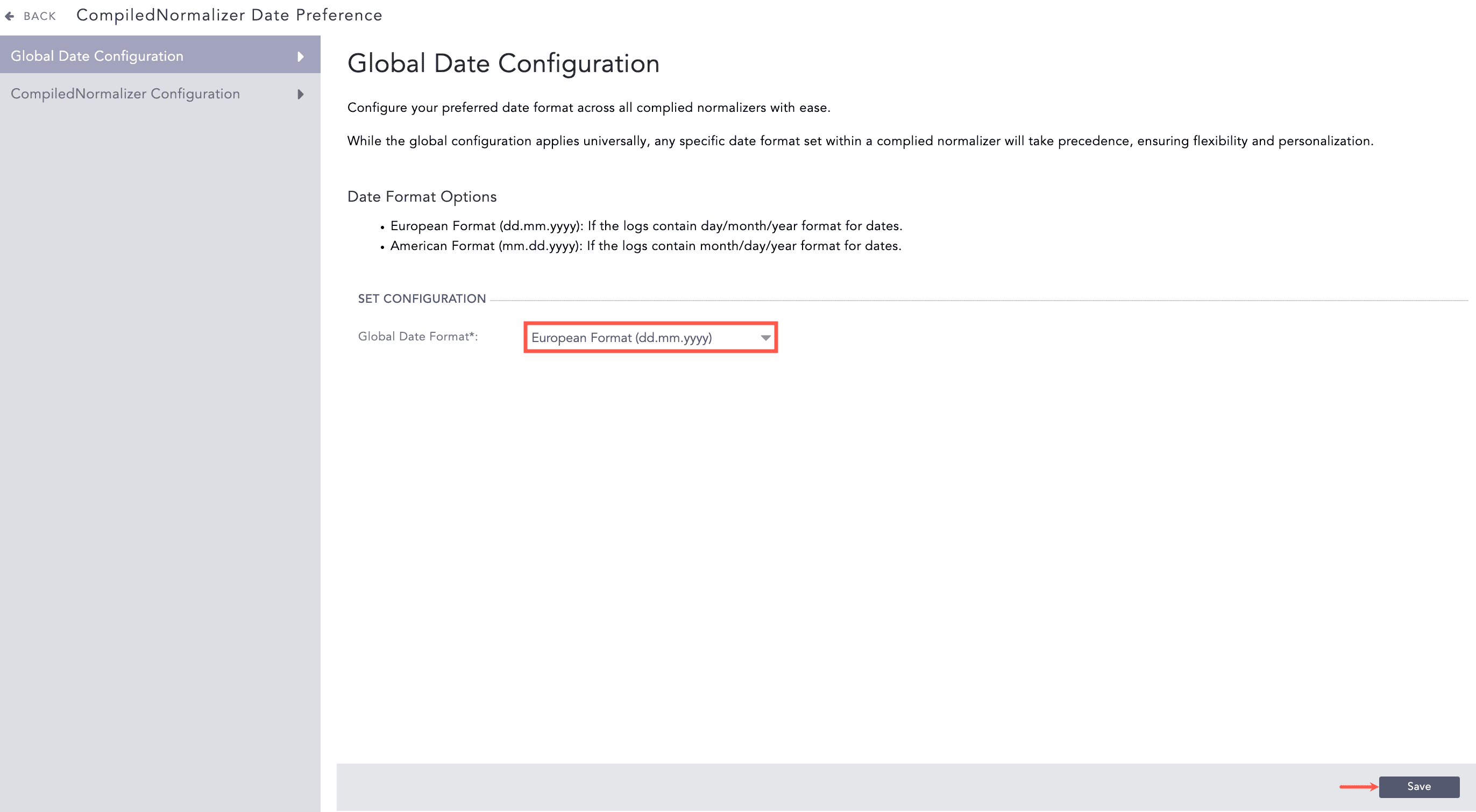
Configuring a Global Date Format
Go to Settings >> Configuration from the navigation bar and click CNDP.
Click CompiledNormalizer Configuration.
Click Add.
Select a Compiled Normalizer from drop-down or enter a Compiled Normalizer.
Select a Date Format from drop-down.
Click Save.
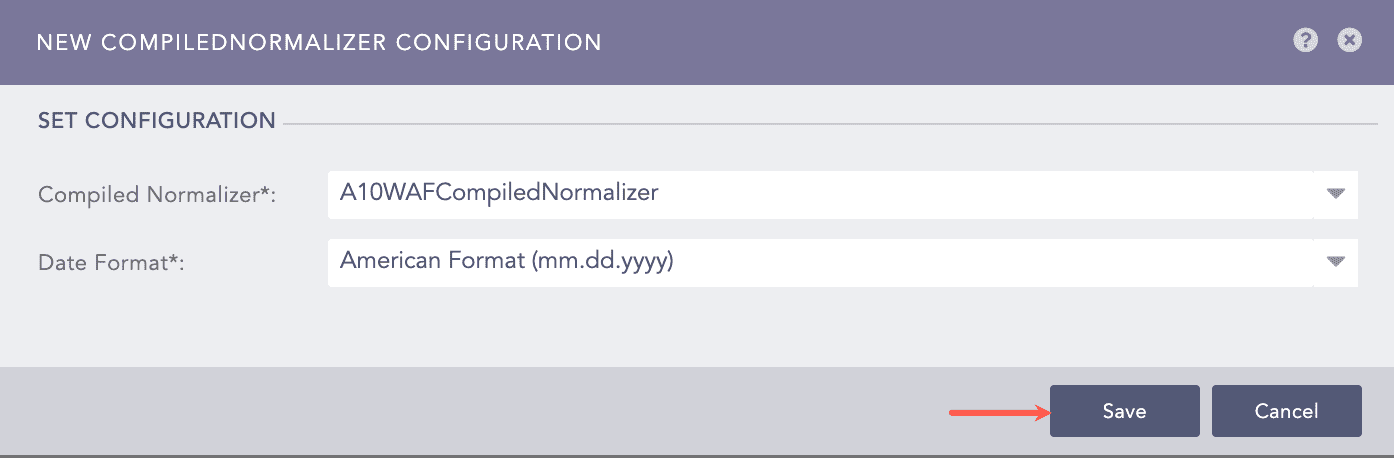
Configuring a Date Format for particular Compiled Normalizer
Go to Settings >> Configuration from the navigation bar and click CNDP.
Click CompiledNormalizer Configuration.
Click the required compiled normalizer name from Application.
Select the required Date Format from drop-down.
Click Save.
Go to Settings >> Configuration from the navigation bar and click CNDP.
Click CompiledNormalizer Configuration.
Click the Delete config icon from Actions of the required compiled normalizer.
Click Yes.